



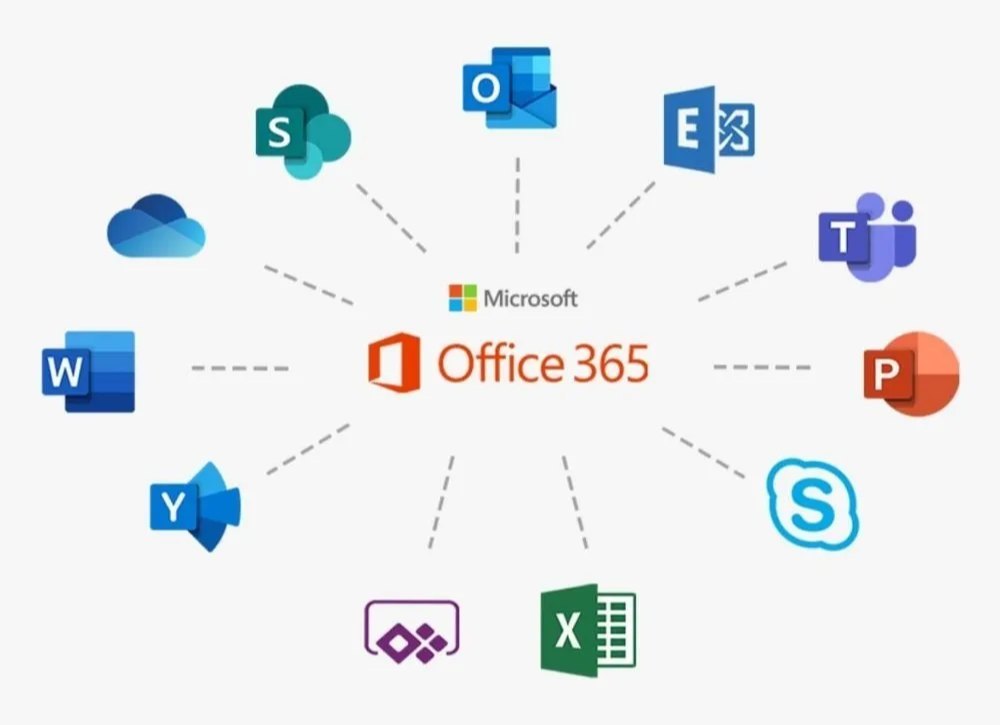
Microsoft Office Complete Training Masterclass 2026
-
 By
coursezy
By
coursezy
- 19/Apr/2026
- 0 Students
Course Description
Master Microsoft Office from beginner to advanced level with this all-in-one Microsoft Office Complete Training Masterclass. This practical, hands-on course covers Excel, Word, PowerPoint, and Outlook in real business and professional scenarios, making it ideal for students, professionals, accountants, office staff, and job seekers.
You’ll start with Microsoft Excel, learning smart data cleaning, formulas, logical functions, lookups (VLOOKUP, XLOOKUP, INDEX-MATCH, DGET), Pivot Tables, dashboards, Power Query, automation with macros, AI features in Excel, financial analysis, reconciliations, reporting, and advanced printing techniques. The course focuses heavily on real-world Excel projects, large datasets, and productivity shortcuts used by professionals.
Next, you’ll gain full command of Microsoft Word, from document formatting and templates to mail merge, reports, tables, forms, references, citations, macros, and document protection. You’ll learn how to create professional documents, automate repetitive tasks, and integrate Word with Excel for dynamic reporting.
In the PowerPoint Masterclass, you’ll design visually stunning and professional presentations. Topics include slide design, animations, transitions, slide master, automated slideshows, presenter tools, AI-powered presentation creation, video recording, and advanced effects for business, training, and marketing presentations.
The course also includes a complete Microsoft Outlook Masterclass, where you’ll learn email management, rules, calendars, automation, mail merge emails, scheduling, contacts management, productivity tools, and professional communication workflows.
This course is packed with step-by-step explanations, downloadable practice files, real projects, and automation techniques to help you work faster, smarter, and more professionally.
By the end of this course, you’ll confidently use Microsoft Office as a productivity powerhouse for data analysis, reporting, documentation, presentations, and business communication.
Course Curriculum
-
1 Course Introduction

-
2 MS Word
-
3 PowerPoint
-
4 Overview of Microsoft Office products - Made with Clipchamp
-
5 Outlook
-
6 OneNote
-
7 Importance and common usage scenarios of Microsoft Office apps
-
8 Excel
-
9 Evolution of Microsoft Office Suite
-
10 Access
-
11 Working with Text and Graphics
-
12 WordArt
-
13 Using Styles and Themes
-
14 The Start Screen and Introduction to Basic Features
-
15 Review Tools_ Spellcheck, Thesaurus, etc
-
16 Printing and Publishing Options
-
17 Opening and Editing Existing Word Documents
-
18 Move and Copy Text, and Find and Replace
-
19 Modifying Page Layout
-
20 Managing References and Citations
-
21 Mail Merge and Forms
-
1 Introduction to Microsoft Word
-
2 Inserting Online Videos
-
3 Inserting Equations
-
4 Inserting Audio Files
-
5 Get Help
-
6 Formatting Pictures
-
7 Formatting Characters and Paragraphs
-
8 Customizing Word Settings
-
9 Creating and Formatting Documents
-
10 Create and Edit Tables
-
11 Collaborating and Reviewing Documents
-
12 Writing and Formatting Your Email
-
13 Tasks and to-do lists
-
14 Setting up your view in Outlook
-
15 Schedule Your Email to Send at a Later Time
-
16 Replying and Forwarding Emails
-
17 Overview of Microsoft Outlook Interface
-
18 Outlook Interface
-
19 Organizing with Folders in Outlook
-
21 Have your emails read to you
-
22 Dictating Your Email in Outlook
-
23 Deleting, Flagging, and Sorting Emails
-
24 Customize the Look and Feel of Outlook
-
25 Creating Signature and Adding to Emails
-
26 Composing Emails
-
27 Calendar Management (scheduling, appointments, meetings)
-
28 Advanced Features (archiving, journaling, etc
-
29 Adding Attachments and Images to Your Email
-
30 Adding a Contact in Outlook
-
1 Using Formulas
-
2 Sharing and Collaboration
-
3 Save File
-
4 PivotTables and PivotCharts
-
5 Introduction to Microsoft Excel
-
6 Introduction to Basic Features
-
7 Insert & Delete Columns or Rows
-
8 Find & Remove Duplicates
-
9 Filter & Sorting
-
10 Data Validation and Protection
-
11 Data Analysis and Visualization
-
12 Conditional Formatting
-
13 Basic Formatting
-
14 Advanced Charting Techniques
-
15 Introduction to Microsoft PowerPoint
-
16 How to Use PowerPoint Templates to Get Started
-
17 Key Terminologies
-
18 Creating Slides Easily
-
19 Copy and Paste Elements
-
20 Applying Professional Design to Slides Quickly
-
21 Use SmartArt Diagrams
-
22 Find Dropdown Menu with Additional Options
-
23 Different Ways to Insert Pictures
-
24 Sorting Slides
-
25 Printing or Exporting a Presentation
-
26 Principles of Effective Presentations
-
27 Presenting Slides with Slideshow and Navigating in Slideshow
-
28 Delivering Presentations
-
29 Creating a Chart
-
30 Constructing a Table
-
31 Apply Different Slide Layouts
-
32 Adding Multimedia and Visual Effects
-
33 Tables, Fields & Records
-
1 Introduction to Microsoft Acces
-
2 Advantages of a Database Over Excel
-
3 Accessing the Start Page
-
4 Access Alternatives
-
5 Sample Order Data
-
6 Calculated Field & Expression Builder
-
7 Exports Tables Forms Queries
-
8 Forms
-
9 Queries
-
10 Relationships
-
11 Reports
-
12 Save Database
-
13 Wrap Up
-
14 Collaboration Features
-
15 Integrating Microsoft Office Apps
-
16 Integration with Cloud Services
-
17 Version Control and Document Management
-
18 Accessibility Features
-
19 Advanced Customization
-
20 Security Best Practices
-
21 Tips and Tricks
-
22 Troubleshooting Most Common Scenarios
coursezy
Rs999.00
Course includes:
-
 Level
Level
-
Beginner
Expert
-
 Duration
5h 50m
Duration
5h 50m
-
 Lessons
105
Lessons
105
-
 Quizzes
0
Quizzes
0
-
 Certifications
Yes
Certifications
Yes
-
 Language
-
Kannada